
Make a project public or private
Choose whether other quilters can see a project, and whether they can read its journal.
Updated Nov 16, 2026 · iPhone, Android and web · 2 min read
Every project has a visibility setting. A public project can appear in Discover and on your profile for other quilters to see. A private project is only for you. The journal entry has its own setting.
Change a project's visibility
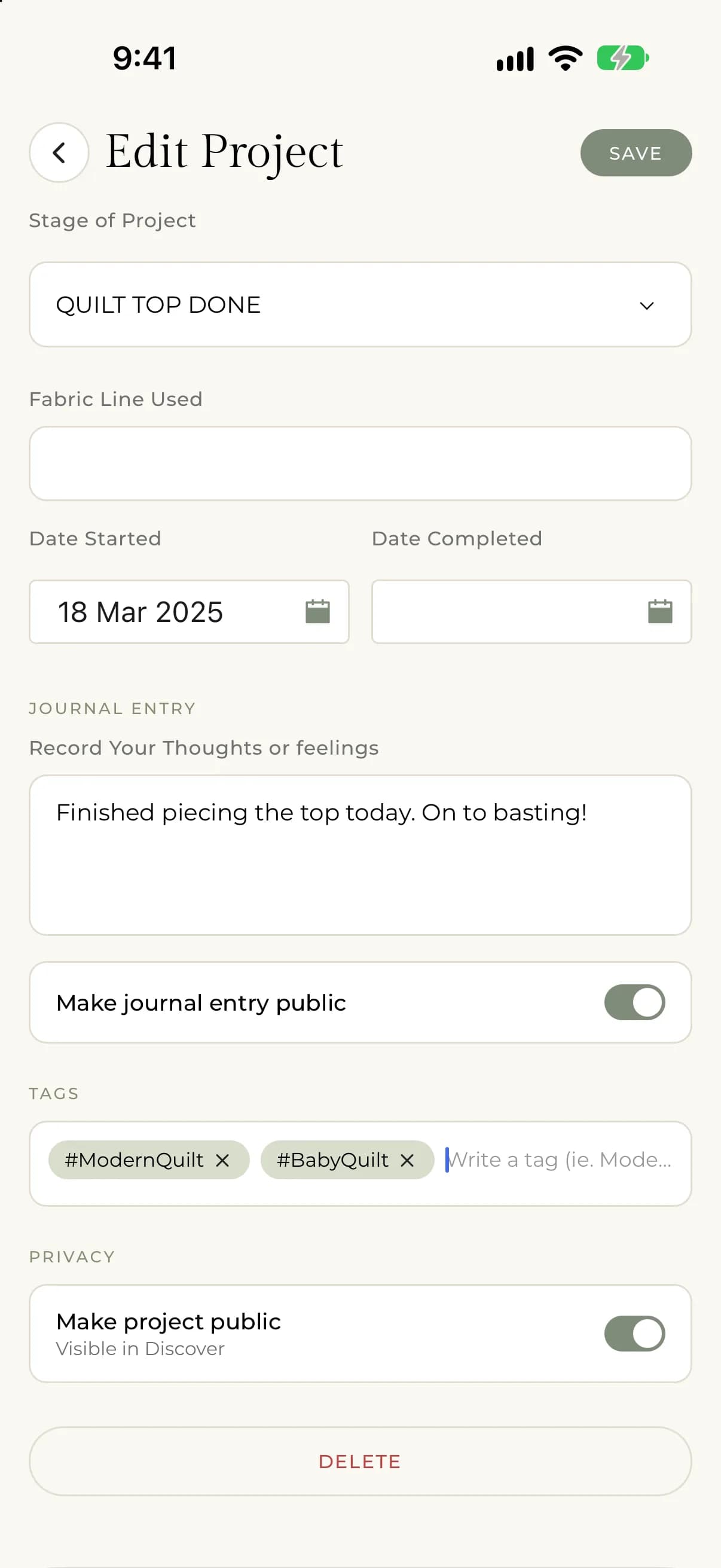
- Open the project and tap Edit Project.
- Scroll to the Privacy section.
- Turn Make project public on or off.
- Tap Save.
On your phone the switch says "Visible in Discover". On the web, select instead of tap, and the switch says "Let other quilters see this project in the public feed".
What a private project looks like
- In My Projects, a private project has a lock icon in list view on your phone, and in the list on the web.
- On your phone, the project page shows "Private project". It explains that "Sharing, likes, saves, and comments are hidden while this project is private."
- On the web, other people who open the link see "This project is unavailable or is not public."
- You can always open and edit your own private projects.
On the web, Save Draft on a new project also keeps it private.
Choose who can read the journal
The journal has its own switch, Make journal entry public, in the Journal Entry section. See Keep a project journal.
Set the default for new projects
Your privacy settings decide whether new projects start public or private. On your phone, new projects use Default Project Visibility and Default Journal Entry Visibility. See Set the default visibility for new projects and journals. A new project on the web starts out public, so check the switch before you save.
To share a public project with someone, see Share a project.