
Share a project
Send a link to your quilt, or share its cover photo to social media.
Updated Nov 16, 2026 · iPhone, Android and web · 2 min read
Share a public project with friends, family or your followers. Anyone with the link can open the project page, and the link shows a preview with your cover photo.
Before you start
Only public projects can be shared. While a project is private, the Share button is hidden. See Make a project public or private.
Share a project
- Open the project.
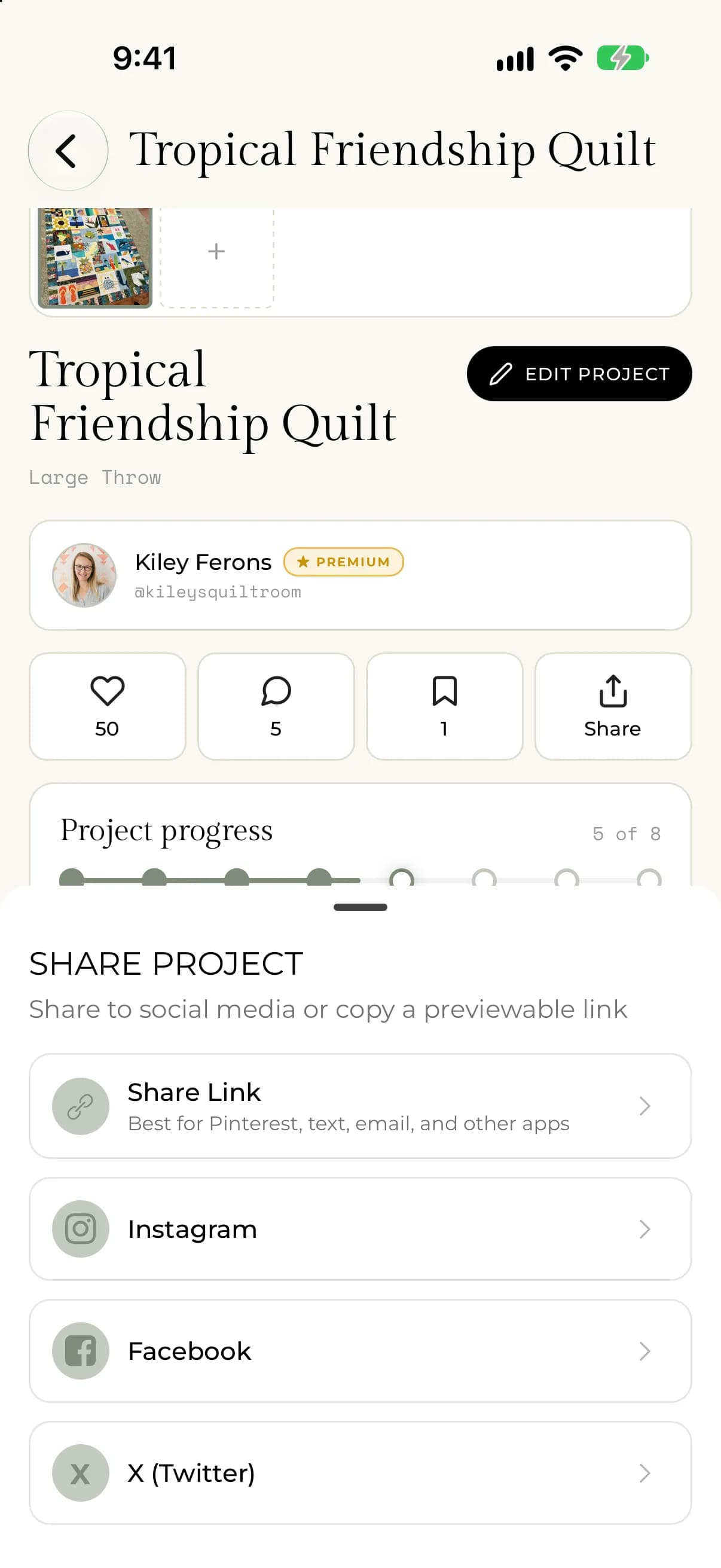
- Tap Share.
- In Share Project, tap Share Link to use your phone's share menu, or tap Instagram, Facebook or X (Twitter) to share to that app.
- Finish sharing in the app you chose.
Share Link sends a message that says "Look at this quilt project" with the project's name and a link. Pick Messages, Mail or any other app from your phone's share menu.
The social options share the project's cover photo. If the project has no photo, the app shares the link instead. On Android there is also a Pinterest option. On iPhone, use Share Link and choose Pinterest from the share menu.
- Open the project.
- Select Share.
If your browser has a share menu, it opens so you can pick an app. Otherwise the project's link is copied, and the button says "Link copied!" for a moment. Paste the link into a message or post.
If something goes wrong
- If you cannot find Share, the project is probably private. Make it public first.
- If a friend sees "This project is unavailable or is not public.", the project is private or has not been published. A project saved as a draft on the web is private until you make it public.