
Edit or delete a project
Change a project's photos and details at any time, or delete it from the app.
Updated Nov 16, 2026 · iPhone, Android and web · 2 min read
You can change anything about a project after you save it. Deleting is available in the mobile app.
Edit a project
- Open My Projects and tap the project.
- Tap Edit Project.
- Change what you need. The form is the same as when you created the project.
- Tap Save.
On the web, select the project in My Projects, select Edit Project, then Save.
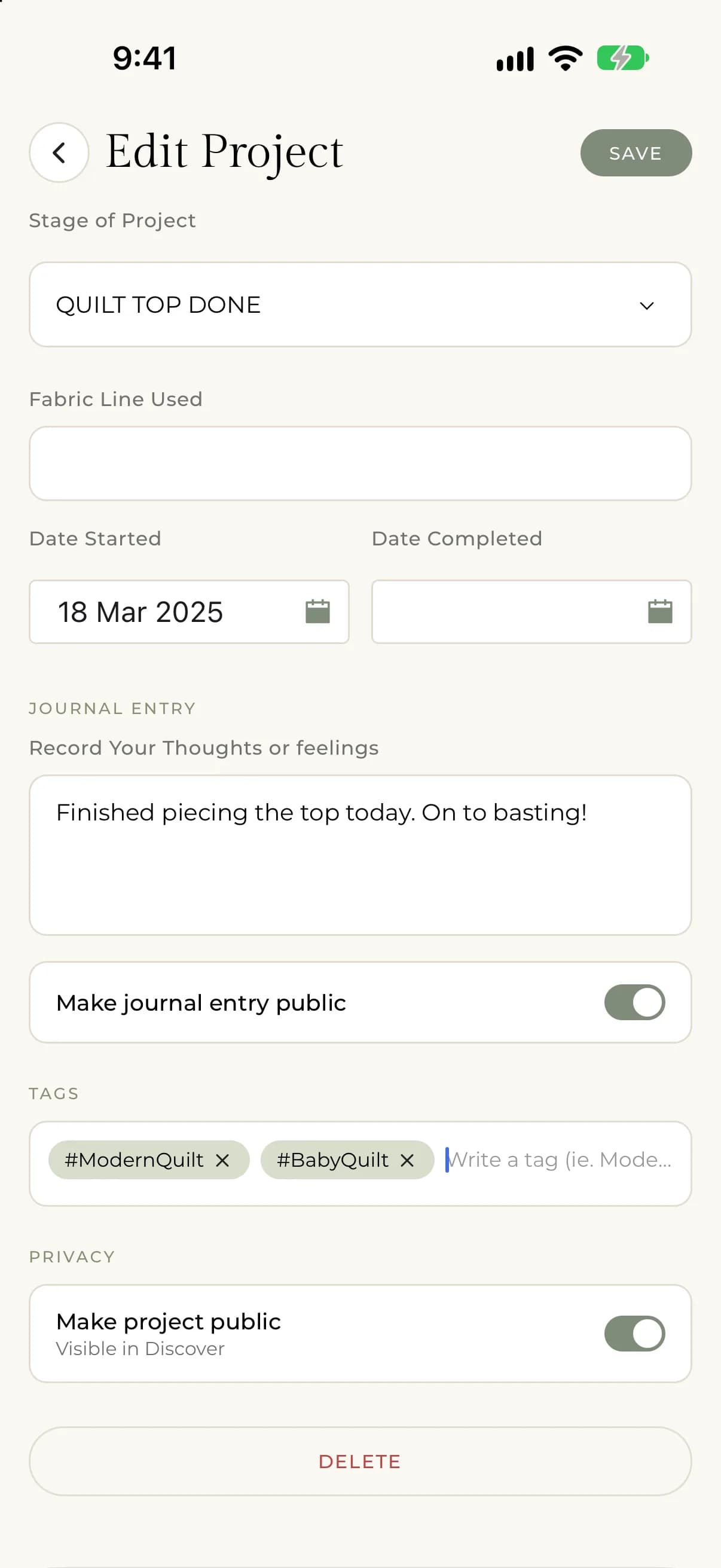
Only you can edit your projects. Other people do not see the Edit Project button.
Delete a project
- Open the project and tap Edit Project.
- Scroll to the bottom and tap Delete.
- In "Are You Sure?", tap Delete to confirm.
You will see "Are you sure you want to delete this project? If you delete it, you will not able to restore it". Deleting removes the project and its photos, and it cannot be undone.
You cannot delete a project on the web. Open the My Quilts app on your iPhone or Android phone and delete it there. If you only want it hidden, you can make it private instead. See Make a project public or private.
Want a copy first? See Export your projects.
If something goes wrong
If a photo will not upload while you edit, the rest of your changes are still saved. Open Edit Project again and add the photo.