
Profile and account
Export your projects
Get a download of your projects and photos by email.
Updated Nov 16, 2026 · iPhone, Android and web · 2 min read
Show steps for
Export makes a copy of the projects you choose and emails you a download link. It is a good idea before you delete your account.
What you get
Your download is a zip file. For each project it has a PDF summary and your photos as JPEG files. The link arrives by email within 24 hours, at the email address on your account. The link expires after 7 days, so download the file soon.
Export projects
- Tap Menu, then tap Export.
- Tap the projects you want, or tap Select All.
- Tap Export Selected.
- In Confirm Export, tap Export.
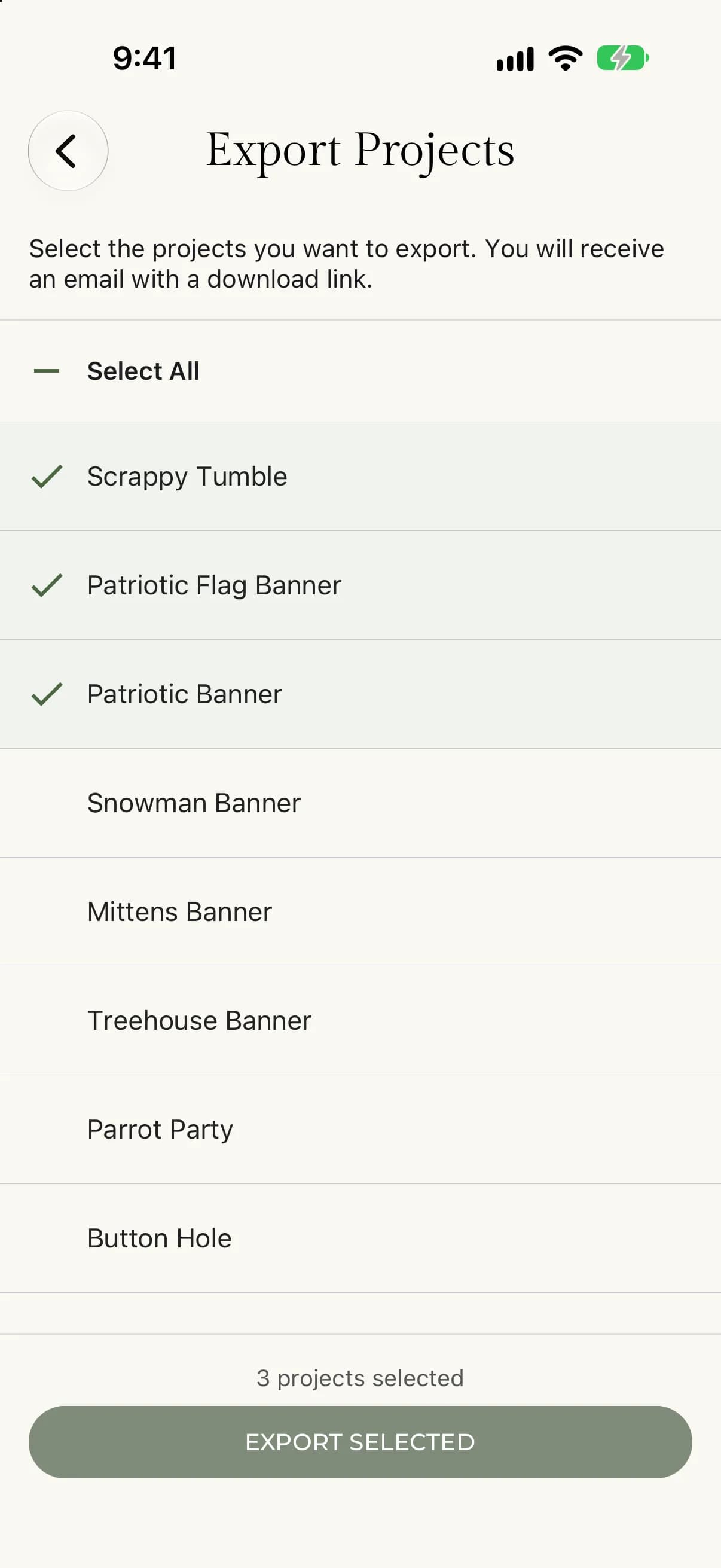
- Select Export Projects in the sidebar.
- Select the projects you want, or select Select All.
- Select Export Selected.
- In Confirm Export, select Export.
The app says Your export is being prepared. You will receive an email when it's ready. When the export finishes, you get an email at the address on your account with the download link.
You can export up to 500 projects at a time. To remove a selection, use Deselect All.
If something goes wrong
- You have no projects to export. Create a project first.
- Please select at least one project to export. Pick at least one project.
- Export Failed. Try again. If it keeps failing, contact support.
- No email? Check that the address on your account is right (see Change your email address).