
Profile and account
Change your password
Choose a new password while you are signed in.
Updated Nov 16, 2026 · iPhone, Android and web · 2 min read
Show steps for
You can change your password any time you are signed in. You need your current password. If you have forgotten it, reset it from the sign-in screen instead.
Change your password
- Tap Menu, tap My Profile, then tap Edit Profile.
- Tap the pencil icon at the end of the Password field.
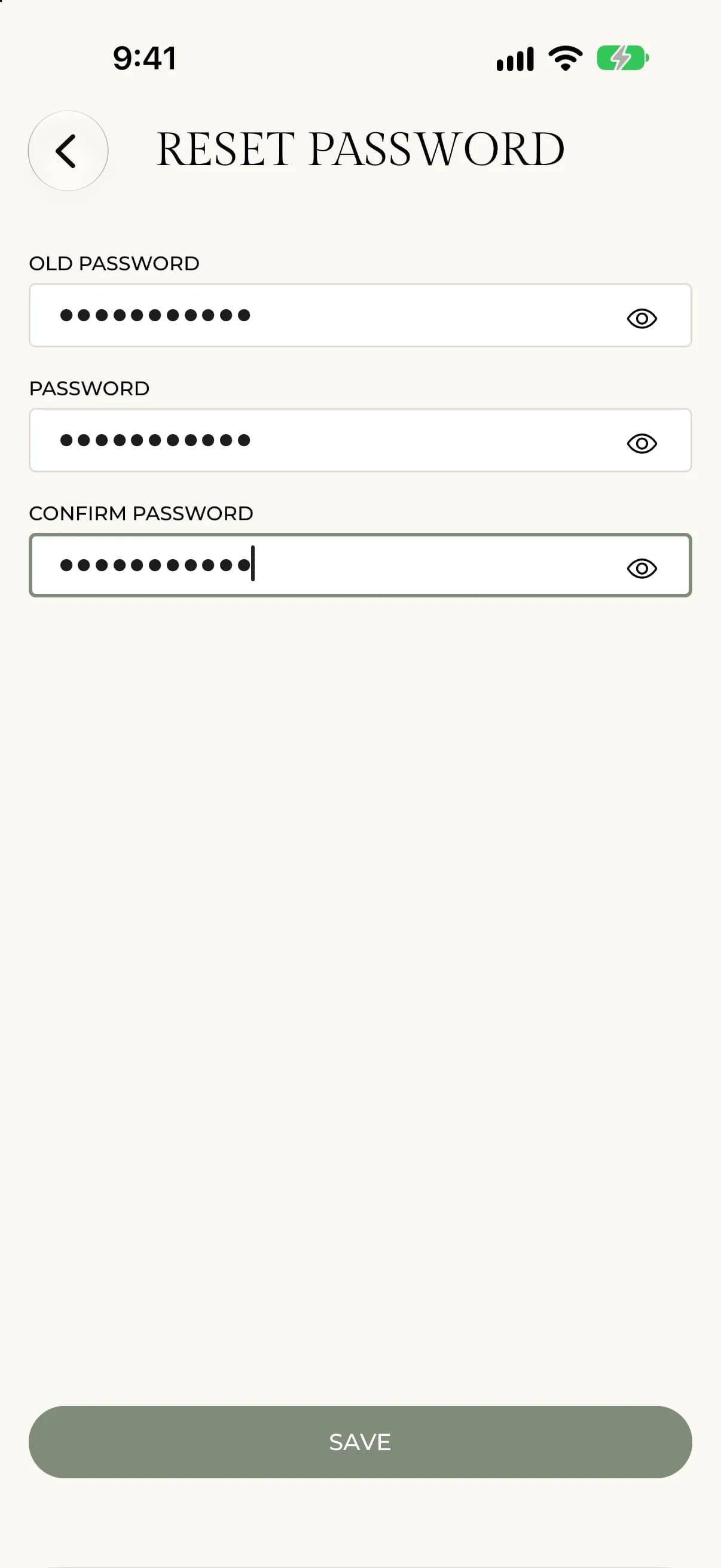
- Enter your current password under Old Password.
- Enter the new one under Password, and again under Confirm Password.
- Tap Save.
The screen is titled Reset Password. After you save, the app shows Your password was successfully updated.
- Select My Profile, then select Edit Profile.
- Select Change next to Password.
- Enter your Current Password, your New Password, and the new one again under Confirm Password.
- Select Save.
The page shows Password updated successfully. and closes.
A password needs at least 6 characters.
If something goes wrong
- Passwords do not match. Type the same new password in both fields.
- Password must be at least 6 characters long. Choose a longer password.
- The password you entered is incorrect (web) or There was an unexpected error updating your password. Check your current password and try again.