
Getting started
Sign in and reset your password
Sign in, sign out, and get a reset link if you forgot your password.
Updated Nov 16, 2026 · iPhone, Android and web · 2 min read
Show steps for
Sign in with the email and password you used to create your account. If you forgot your password, My Quilts emails you a link to choose a new one.
Sign in
- Tap Menu, then tap Sign In. Tapping My Projects, Saved or the + button while signed out also takes you to the sign-in screen.
- Enter your Email and Password.
- Tap Sign In.
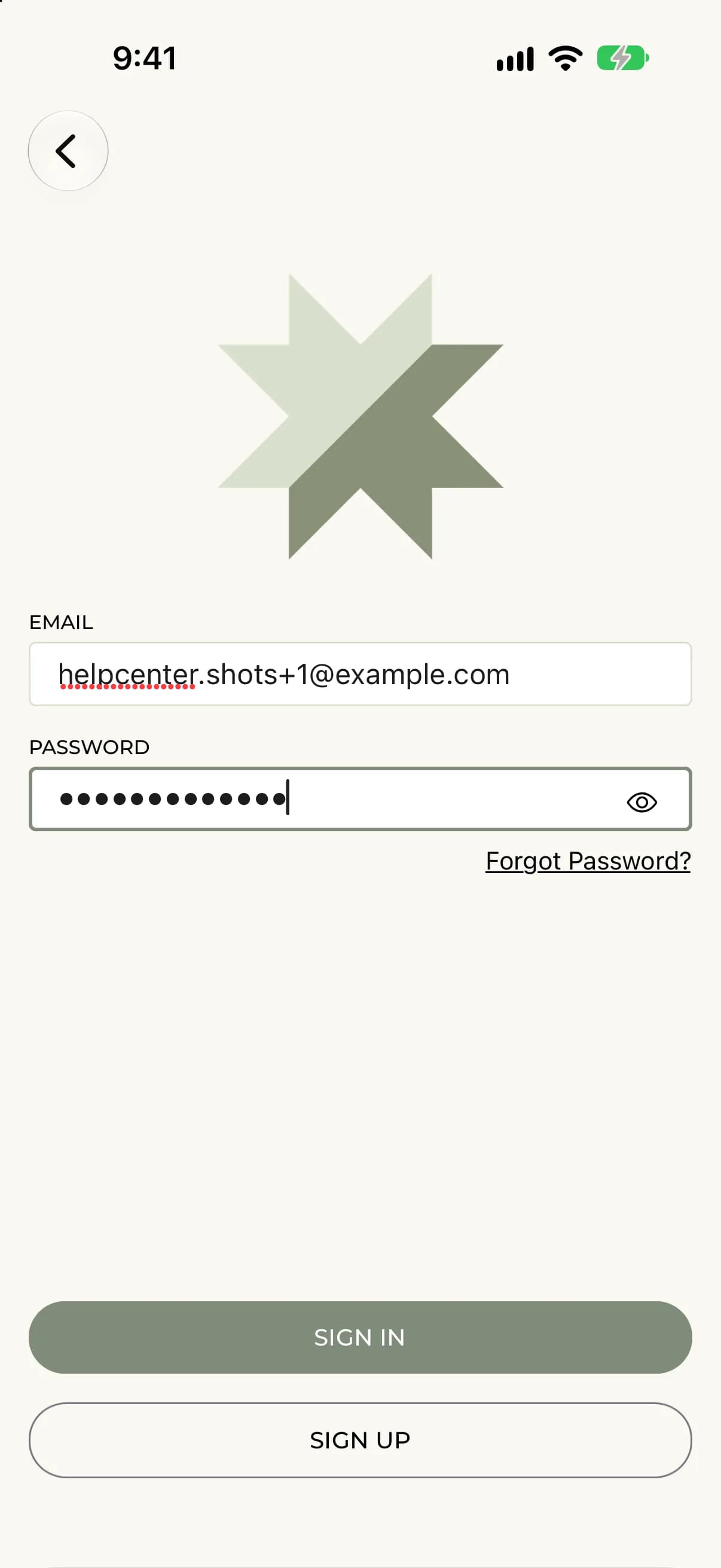
- Go to myquilts.app and select Sign In.
- Enter your Email and Password.
- Select Sign In.
Reset a forgotten password
- On the sign-in screen, tap Forgot Password?.
- Enter your Email and tap Send Reset Link.
- Open the email, follow the link and choose a new password.
- Back in the app, tap Return To Login and sign in with the new password.
- On the sign-in page, select Forgot password?.
- Enter your email and select Send Reset Link. The page says you will receive a reset link shortly if an account exists for that email.
- Open the email, follow the link and choose a new password.
- Select Return To Login and sign in with the new password.
If you remember your password and just want a new one, see Change your password.
Sign out
Tap Menu, then tap Logout and confirm.
Open the account menu in the top corner and select Sign out.
If something goes wrong
- Invalid email or password. Check both and try again, or reset your password.
- User account has been disabled. Contact support@myquilts.app.
For more help, see I can't sign in.