
Save and revisit bundles
Save a bundle, find it again later, rename it, add a note, or delete it.
Updated Nov 16, 2026 · iPhone, Android and web · 2 min read
Keep every bundle you like, so you can come back to it when you are ready to shop or sew.
Save a bundle
- Generate a bundle. See Generate a fabric bundle.
- Under SAVE THIS BUNDLE, type a Bundle name. A name is required.
- Optional: add a note. On the app the field says Optional note.
- Tap Save bundle.
You return to your list of saved bundles. If you see "Give this bundle a name before saving.", enter a name first.
On the web, the section is also called Save this bundle. Your unsaved result stays on the page until you leave it, so save before you go.
Find a saved bundle
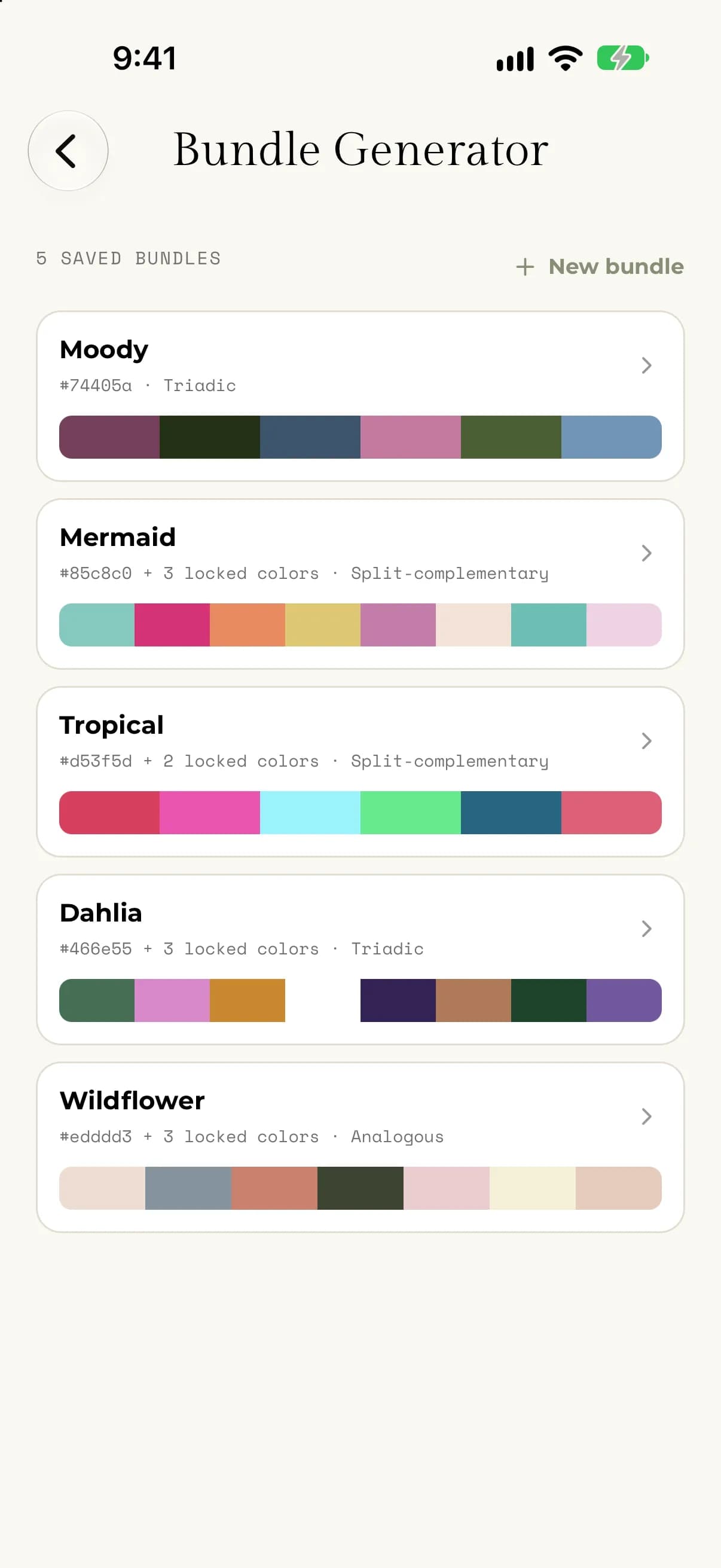
Open Bundle Generator from the menu. Your saved bundles are listed with their names, their seed colors, the color scheme and a strip of the bundle colors. The count at the top shows how many you have saved. Tap one to open it.
Rename a bundle or change its note
- Open the saved bundle.
- Under EDIT BUNDLE, change the name or the note.
- Tap Save changes.
On the web, select a bundle to open the Saved Bundle window. Change the Name or Note, then select Save changes.
You can rename a bundle and edit its note. You can't change its colors. To try different colors, make a new bundle.
Delete a bundle
- Open the saved bundle.
- Tap Delete bundle.
- Confirm by tapping Delete.
On the web, select Delete, then Delete again to confirm. Either way, you're asked "Delete this bundle?", with a reminder that it can't be undone. A bundle you started from a photo is deleted with the photo.
If something goes wrong
- If you see "We couldn't delete this bundle. Please try again.", check your connection and try again.
- If you see "This bundle is no longer available.", it was already deleted.
- If your list doesn't load, tap Try again.