
Generate a fabric bundle
Start from a color, a photo, or a fabric in your stash and get a coordinated set of colors.
Updated Nov 16, 2026 · iPhone, Android and web · 4 min read
The Bundle Generator builds a coordinated set of colors, a bundle, from one starting point. Use it to plan a fabric pull before you shop or sew. You can start from a single color, a photo, or a fabric in your stash.
Make a bundle
- Open the menu and tap Bundle Generator.
- Tap New bundle. If you have no bundles yet, tap Create a bundle.
- Choose how to start: Pick a color, Use a photo, or Choose from your stash. See the sections below for each.
- Tap Continue, then choose how many colors you want.
- Tap Generate bundle.
- Look at the result. Switch color schemes, or tap Show another, until you like it.
- Name the bundle and tap Save bundle.
On the web, select Bundle Generator in the sidebar, then select New Bundle. The steps are the same, with these starting points: From a Color, From a Picture and From a Fabric. Select Cancel to leave without saving.
On iPhone and Android the wizard has three steps, shown at the top of the screen as STEP 1 OF 3 (choose a seed), STEP 2 OF 3 (bundle size) and STEP 3 OF 3 (your color bundle). The back button at the top takes you one screen back.
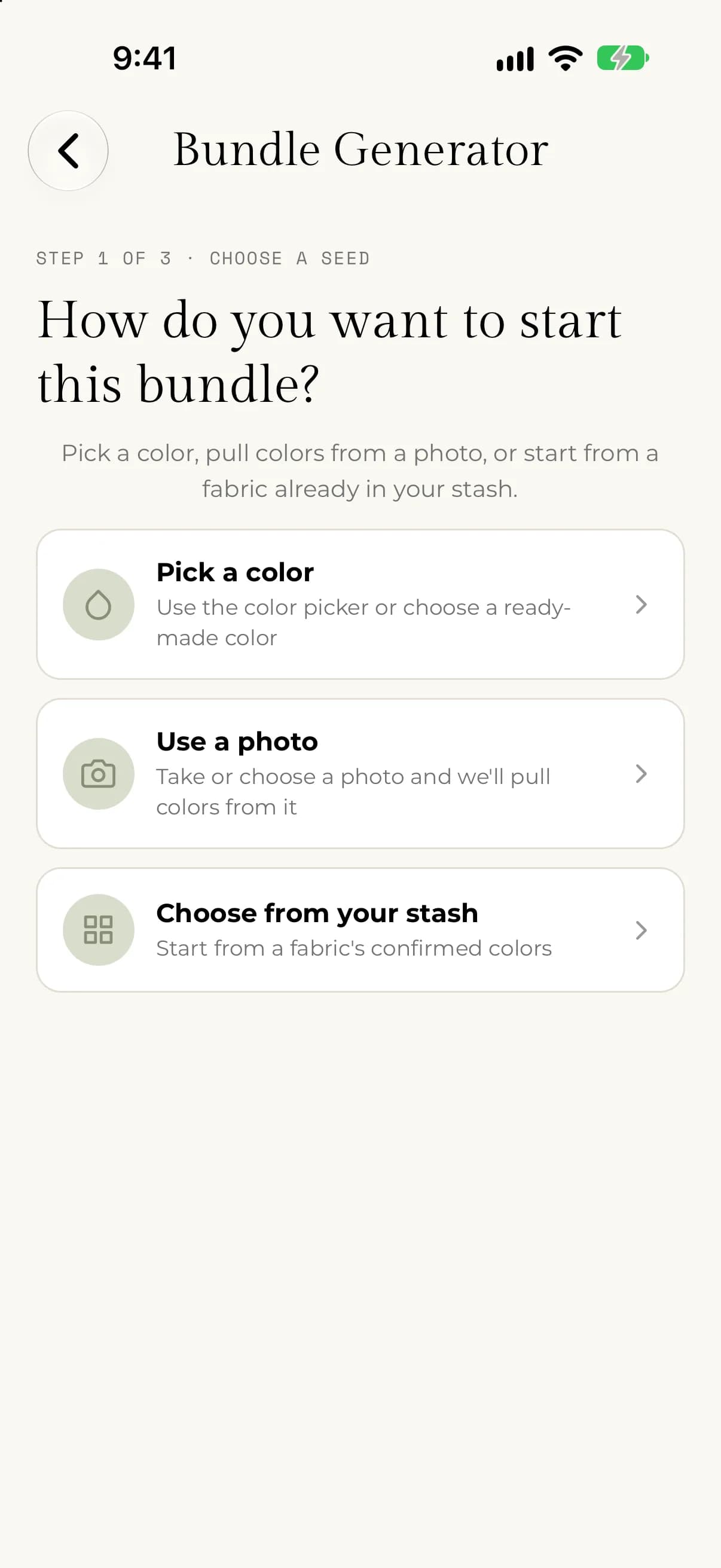
Start from a color
Tap Pick a color. You can tap one of the ready-made swatches under QUICK SELECT, or tap Pick a custom color to choose any hue, saturation, and brightness. The color you choose is shown under Selected color.
Start from a photo
- Tap Use a photo.
- Tap Take photo or Choose photo.
- Wait for Extracting colors… to finish.
- Tap the colors you want to keep. You can select up to 4.
The first color you select is the primary anchor, which the rest of the bundle is built around. To fine-tune a color, tap the pencil beside it. Selected seeds stay in the finished bundle.
Start from a fabric in your stash
Tap Choose from your stash. Your Fabric Stash opens with the message "Tap a fabric to use its colors in your bundle". Tap a fabric, then select up to 4 of its confirmed colors. The first one is the primary anchor.
You can also open a fabric in your stash and tap Generate a bundle from this fabric. Making a bundle never changes the fabric or its quantity.
Choose the size
Choose between 3 and 12 colors, using the minus and plus buttons. The smallest size depends on your choices. A bundle can't be smaller than the number of seed colors you picked, and the Tetradic (square) scheme needs at least 4 colors.
Explore the result
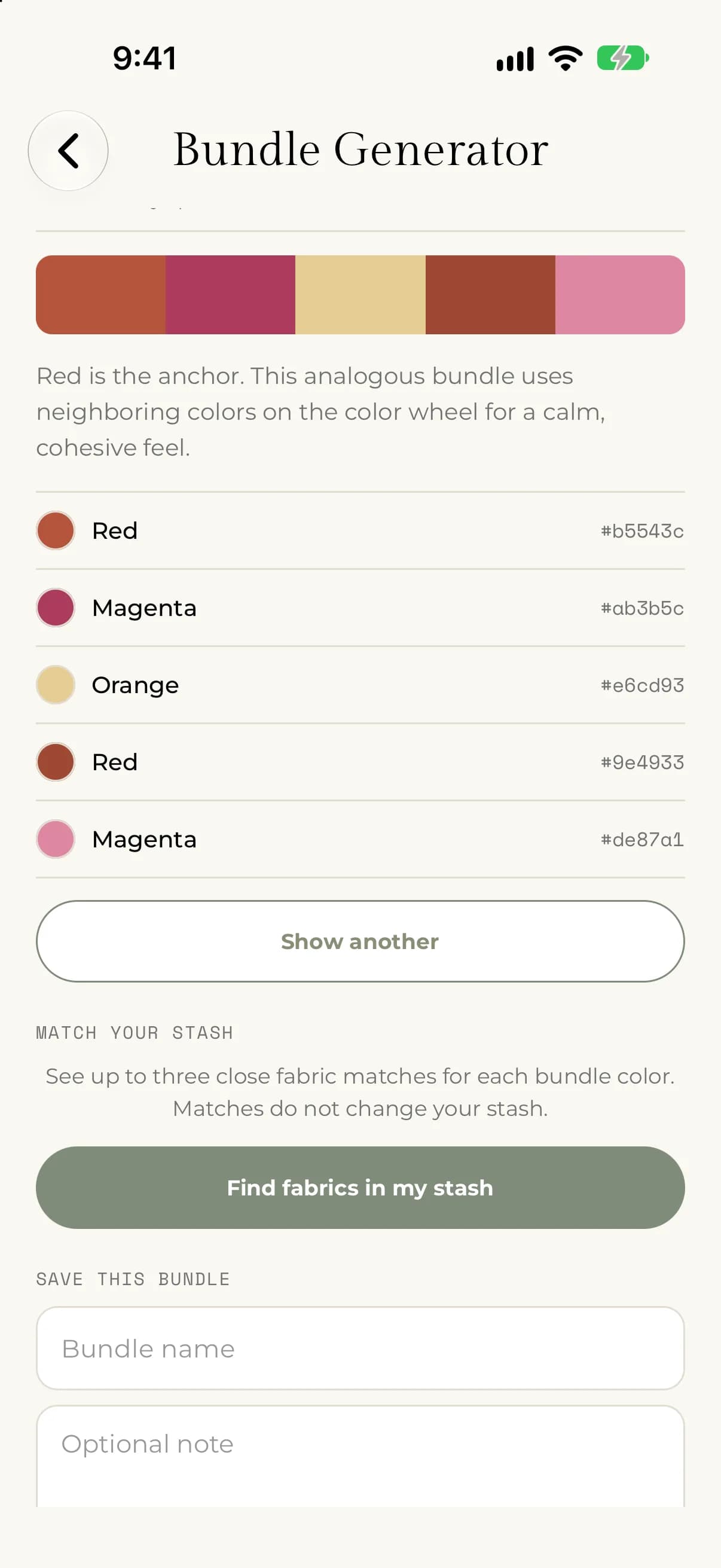
The result shows your colors in a strip, with a name and a hex value for each, and a short explanation of the color scheme.
- Under EXPLORE COLOR SCHEMES, tap another scheme to preview a new bundle from the same seed colors. See Understand color harmonies.
- Tap Show another for a different bundle with the same scheme. The same choices always produce the same bundle, so you can come back to it.
- Tap Find fabrics in my stash to see which of your fabrics are close. See Match a bundle to your stash.
If something goes wrong
- If you see "Allow access to your camera to use a photo seed." or the same message for your photo library, allow access for My Quilts in your phone's settings.
- If you see "We could not extract colors from that photo. You can still enter a color below.", pick a color instead, or try a clearer photo.
- If you see "You can select up to 4 seed colors. Remove one to choose another.", tap a selected color to remove it first.
- If you see "This color could not be generated. Choose another seed color.", go back and choose a different color.