
Add a fabric with a photo
Photograph a fabric, with tips for an accurate capture.
Updated Nov 16, 2026 · iPhone, Android and web · 3 min read
Photograph a fabric and My Quilts pulls out its colors, so you can find it again by sight instead of digging through bins. Adding a fabric takes three steps: 1 · Capture, 2 · Colors, and 3 · Details.
Add a fabric
- Open the menu and tap Fabric Stash.
- Tap the + button. If your stash is empty, tap Add Your First Fabric.
- Tap Take Photo, or tap Choose from Library to use a picture you already have.
- Wait for Uploading photo… to finish, then tap Continue.
- Check the colors we found and tap Looks Right — Continue. See Review and adjust a fabric's colors.
- Give the fabric a name and fill in any details you want to keep.
- Tap Save to Stash.
On the web, select Fabric Stash in the sidebar, then select Add Fabric. Select Choose from Library to pick a photo from your computer. The photo, colors and details appear on one page, with the photo and colors on the left and the details on the right. Select Save to Stash when you are done.
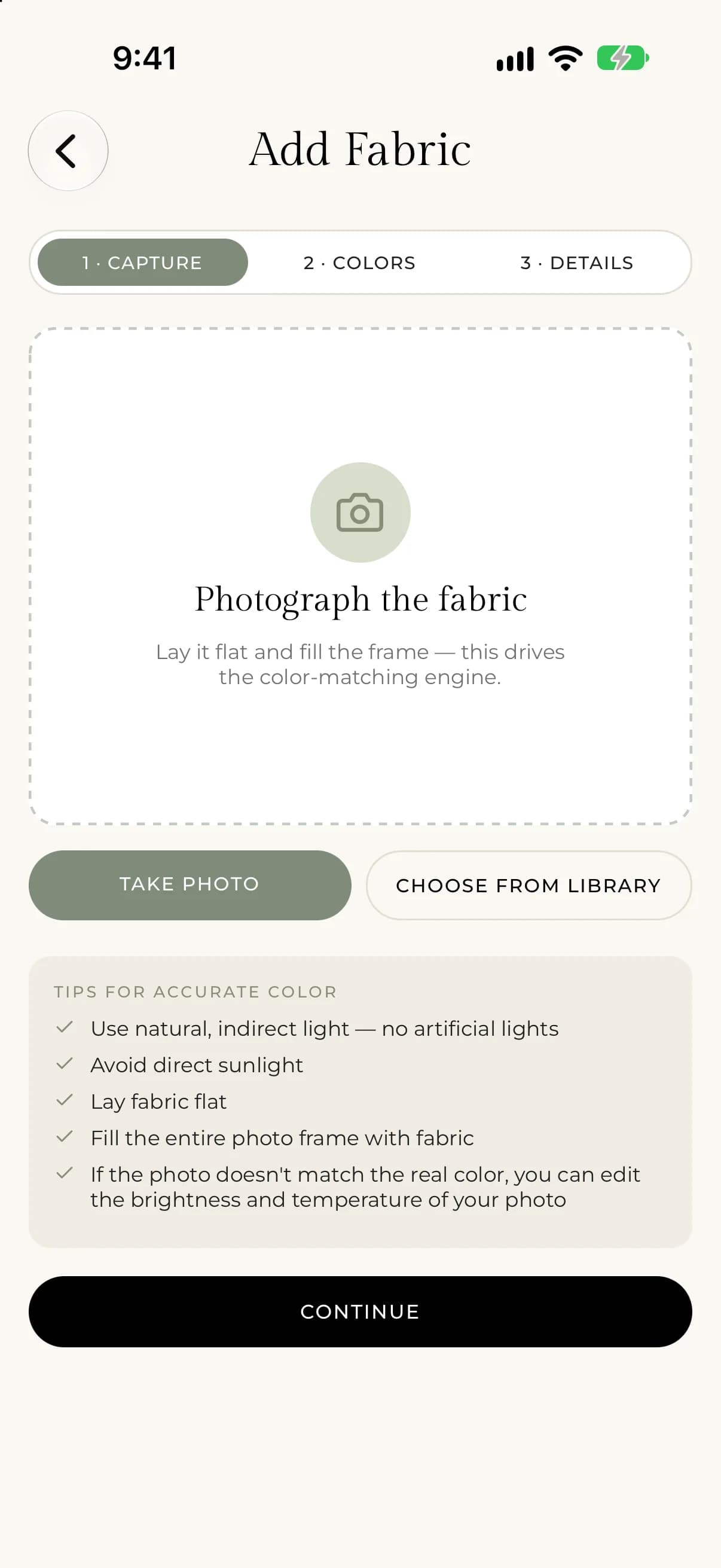
Take a photo that reads well
The photo drives the color matching, so a good picture gives better colors. The app asks you to lay the fabric flat and fill the frame.
To use a different picture, tap Replace Photo.
Name your fabric and add details
The only required detail is a Name, for example "Teal Botanical Print". Everything else is optional, and it makes your stash easier to search later.
- Type: Solid or Print. For a print you can also set the Pattern scale (Small, Medium or Large) and a Theme, such as Floral or Geometric.
- Fabric type, for example Cotton or Woven / Linen. Choose Custom to type your own.
- Manufacturer, Collection and Designer.
- Pre-washed.
- Quantity: an amount and a unit, such as yards or fat quarters. Anything smaller than a fat quarter counts as a scrap.
- Width and Storage location, such as "Bin 3, Shelf B".
- Custom tags. Type a tag and add it.
If something goes wrong
- If you see "We need camera access to photograph your fabric." or "We need photo library access to choose a fabric photo.", allow access for My Quilts in your phone's settings, then try again.
- If you see "Add a photo before continuing.", add a photo first.
- If you see "The photo didn't upload. Please try again.", tap Retry Upload.
- On the web, photos must be JPEG, PNG, WebP or HEIC, and no larger than 8 MB. Otherwise you will see "That photo is larger than 8MB. Try a smaller one." or "That file type isn't supported. Use a JPEG, PNG, WebP, or HEIC image."
- If you see "Give this fabric a name before continuing.", enter a Name.
- If you see "We couldn't save that fabric. Please try again.", check your connection and tap Save to Stash again.