
Find a pattern in your library
Search, sort, and switch between grid and list views.
Updated Nov 16, 2026 · iPhone, Android and web · 2 min read
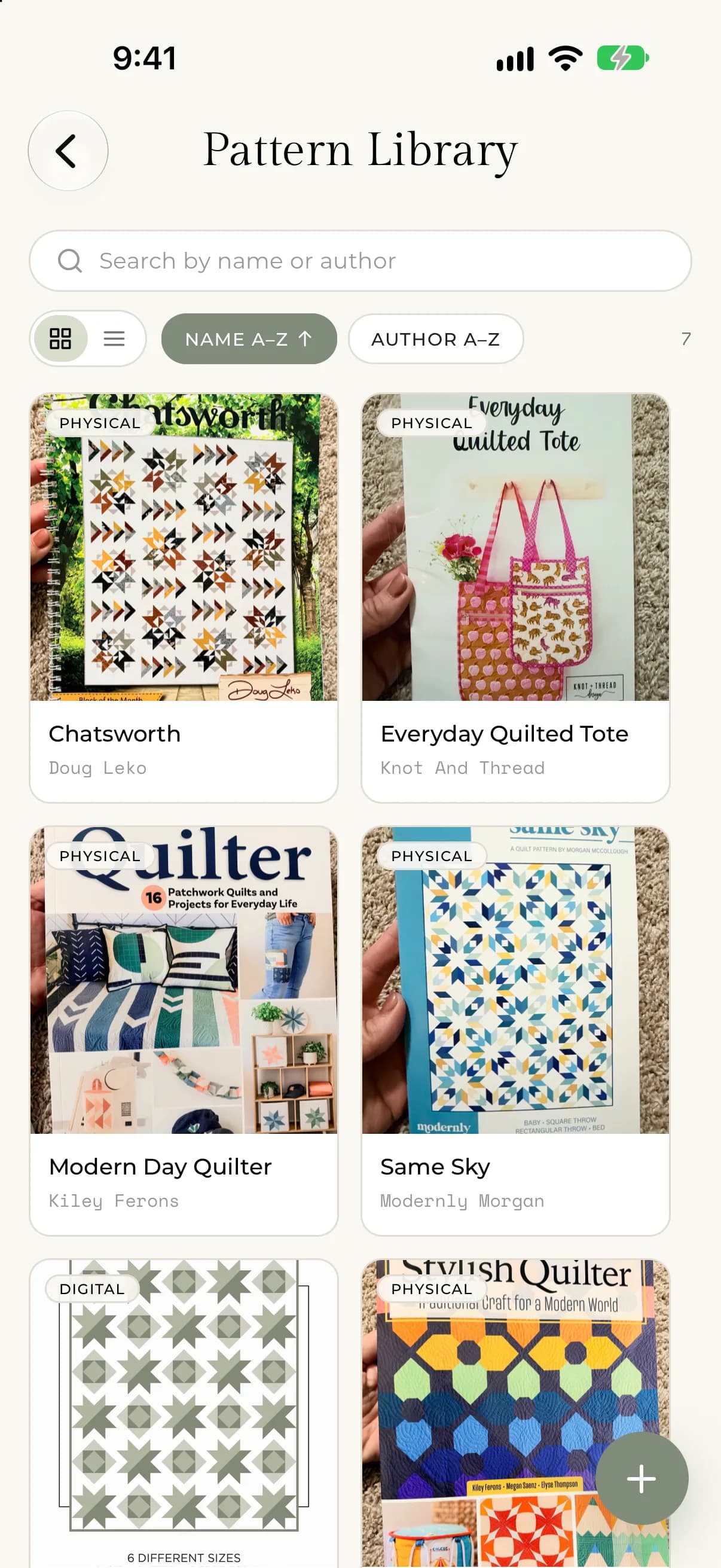
Your Pattern Library shows every pattern you have saved. Search by name or author, sort the list, and view it as a grid of covers or as a list.
Search your patterns
- Open the menu and tap Pattern Library.
- Tap the search bar, which says Search by name or author.
- Type part of the pattern name or the author's name.
The list narrows as you type. Clear the search bar to see everything again. The number next to the sort buttons shows how many patterns match.
On the web, select Pattern Library in the sidebar. The search bar is at the top of the page, and the pattern count appears under the page title.
Sort the list
Two sort buttons sit beside the view toggle: Name A–Z and Author A–Z. Tap one to sort by that field. Tap it again to reverse the order, and the label changes to Name Z–A or Author Z–A. An arrow on the active button shows the direction.
The library starts sorted by name, A to Z.
Switch between grid and list
Use the two small buttons at the left of the toolbar.
- The grid shows each pattern as a cover photo card.
- The list shows a small cover, the pattern name, and the author and copy type on one line.
Tap any pattern to open it.
If something goes wrong
- If the library is empty, you will see "No patterns yet. Tap + to add your first pattern." See Add a pattern to your library.
- If a search finds nothing, check the spelling. Search looks at the pattern name and author only, not your notes.