
Edit or remove a fabric
Change a fabric's details or quantity, mark it used up, or delete it.
Updated Nov 16, 2026 · iPhone, Android and web · 2 min read
Open any fabric in your stash to see its photo, colors, quantity and details. From there you can update it as you use it, mark it used up, or delete it.
Open a fabric
In Fabric Stash, tap a fabric. The page shows its confirmed colors, how much is In stash, its fabric type, scale and theme, where it is stored, and its tags.
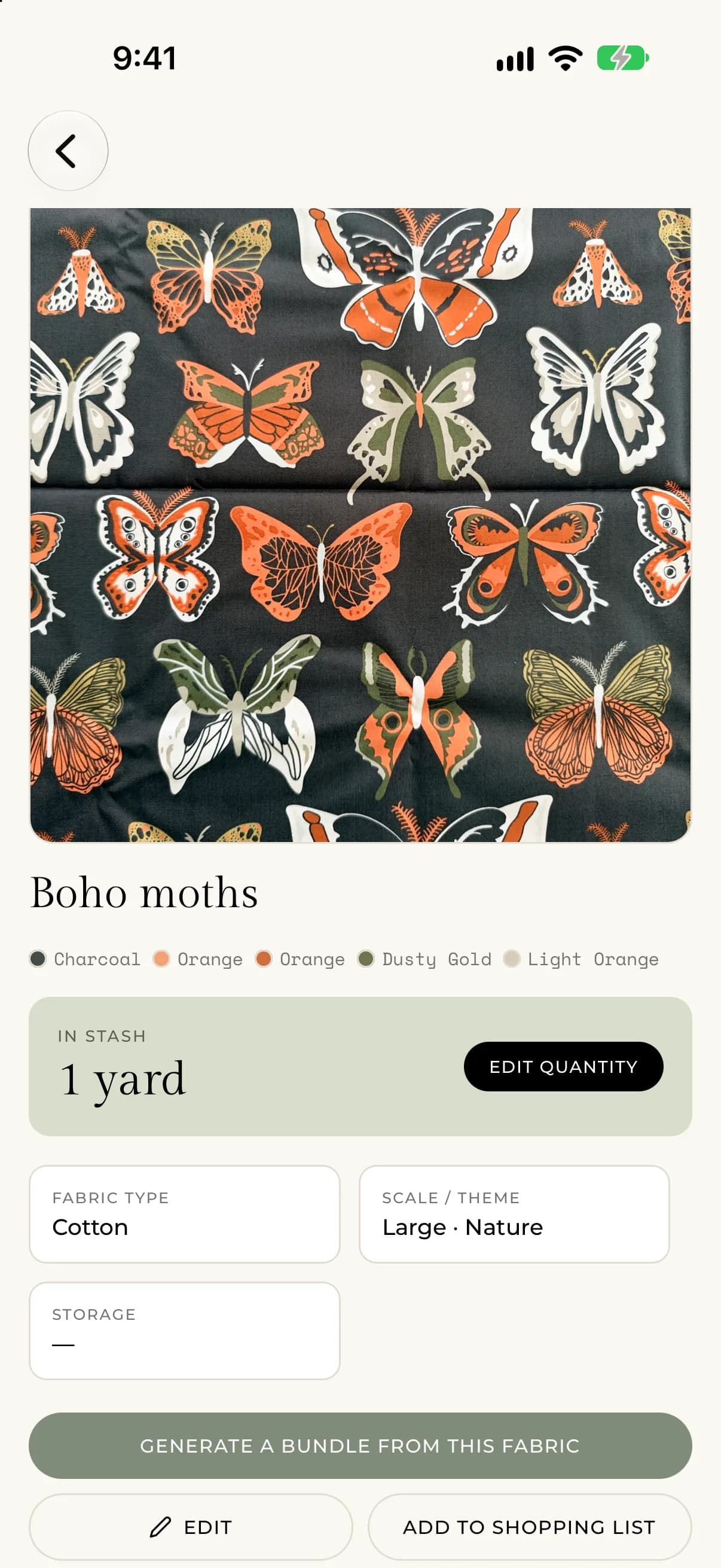
Edit a fabric
- Open the fabric and tap Edit.
- Change any detail. The editing screen opens on the 3 · Details step, and on iPhone and Android you can switch to 2 · Colors or 1 · Capture to change the colors or the photo. On the web, everything is on one page.
- Tap Save Changes.
To update only the amount, tap Edit Quantity.
Mark a fabric used up
When you have used the last of a fabric, tap Mark used up. It stays in your stash with a Used up label, so you keep a record of it. If you find more, edit the quantity so it is above zero and the label goes away.
Add a fabric to your shopping list
Tap Add to Shopping List to put the fabric on your list. On the web the button reads Add to shopping list. See Build your shopping list.
Delete a fabric
- Open the fabric.
- Tap Delete Fabric.
- Confirm by tapping Delete.
You will see "Delete this fabric?" and a message that it removes the fabric and its photos from your stash and can't be undone. Deleting removes the photos as well. Tap Cancel to keep it.
If something goes wrong
- If you see "We couldn't update that fabric. Please try again.", check your connection and save again.
- If you see "We couldn't change that fabric's status. Please try again.", try Mark used up again.
- If you see "We couldn't delete that fabric. Please try again.", check your connection and try again.