
I'm not getting notifications
Check your My Quilts settings, your phone's permission and your browser's permission.
Updated Nov 16, 2026 · iPhone, Android and web · 3 min read
A push notification has to get past three gates: the setting in My Quilts, the permission on your phone or browser, and the kind of notification you chose. Check each one.
1. Check the My Quilts settings
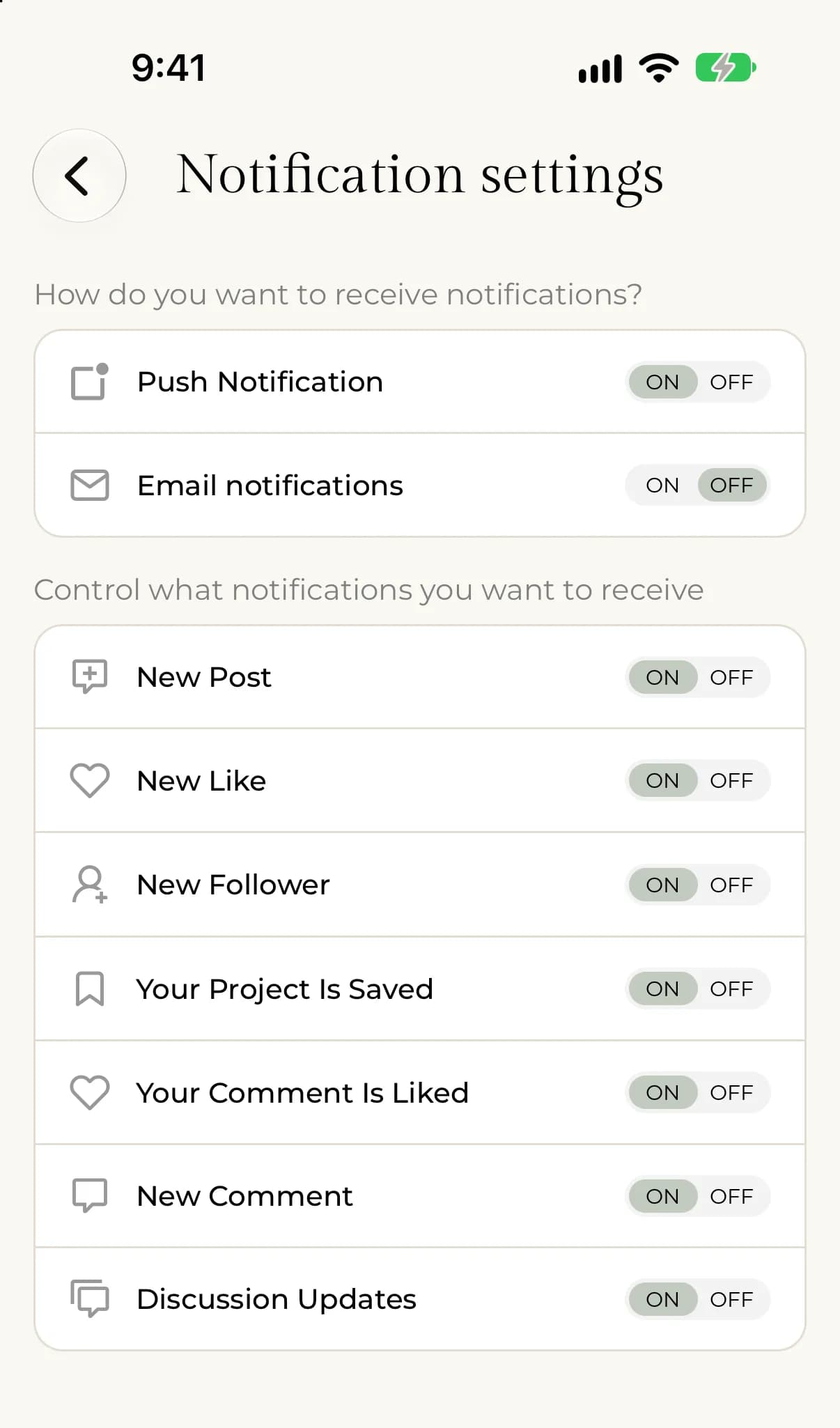
- Tap Menu, then Settings, then Notification Settings.
- Make sure Push Notification is set to On. Set Email notifications to On too if you want email.
- Under Control what notifications you want to receive, make sure the kinds you want are set to On, for example New Like, New Follower or New Comment.
If you tapped NOT NOW on the Stay Connected screen, push was turned off. Set it to On here.
- Select Settings in the sidebar, then select the Notifications tab.
- Under Channels, make sure Push Notification is on.
- Under What you get notified about, make sure the kinds you want are on.
The web has push notifications only, with no email option. You can also read everything in your notifications inbox.
2. Check the permission
My Quilts can only send push notifications if your iPhone allows it. Open the Settings app, scroll to My Quilts, tap Notifications, and turn on Allow Notifications. If the Push Notification switch in My Quilts won't stay on, the phone permission is usually the reason.
My Quilts needs the notification permission. Open your phone's Settings, go to Apps, then My Quilts, then Notifications, and allow them. The exact menu names vary between phones.
Your browser must allow notifications for myquilts.app. If you see "Notification permission was denied" or "Enable notifications in your browser settings to receive push", the permission was blocked. The Push Notification switch is greyed out until you allow notifications for myquilts.app in your browser's site settings. Then reload the page and try again.
If the page says "Your browser does not support push notifications", try a different browser. Push is set up for each browser separately, so turn it on in every browser you use.
3. Other things to check
- Do Not Disturb or Focus. These silence notifications on your phone.
- The kind of notification. You only hear about the kinds that are switched on. They are all on by default.
- A recent change. After you switch push off and on again, or sign in on a new phone, open the app once so it can register the device.
Still not working?
Email support@myquilts.app with your device, your operating system version, and which notification you expected.